Business details shown on every PDF
Updated 21 October 2026 · 3 min read
Open Business in the menu, fill in your details and click Save details. Every document that uses the “my” variables, such as {{my_name}} or {{my_address}}, then prints them for you.
Your business details are the lines you would otherwise retype on every quote or invoice: your name, address, VAT number, bank details and payment terms. In Fillfold you write them once, in your account, and each PDF fills them in for you.
Where to enter them
- In the menu on the left, click Business. The page is called Business details.
- Fill in Business name and the Address lines: line 1, line 2, town or city, county or region, postcode, and the country from the list.
- Add your VAT or company number if you have one. It is printed as “VAT number: …”. Leave it empty if you have none.
- Add your IBAN for bank transfers. Fillfold checks it for typing mistakes before saving.
- Add your Email, Phone and Website (the website must start with
https://). - Write your Payment terms, for example “Payment due within 14 days.”
- Click Save details. A Saved message confirms it.
Every field is optional. If a value is not accepted, a short message under the field explains what to fix, and what you typed stays on screen.
How the details reach the PDF
A PDF document is built from blocks of text, and the text can hold variables: names between double braces that are replaced by real values. Your business details have their own variables, all starting with my_:
| Variable | What it prints |
|---|---|
{{my_name}} | Your business name |
{{my_address}} | Your address, on several lines |
{{my_vat_line}} | “VAT number: …”, or nothing if empty |
{{my_iban_line}} | “IBAN: …”, or nothing if empty |
{{my_email}}, {{my_phone}}, {{my_website}} | Your contact details |
{{my_terms}} | Your payment terms |
{{my_vat}}, {{my_iban}} | Your VAT number or IBAN alone, without the label |
You do not have to type them yourself. In the document editor, the Variables panel lists them: click one to insert it. The From and to block and the ready-made layouts (invoice, quote, expense claim) already contain them. See Design the PDF for the editor itself.
Good to know
- The details are read when each PDF is made. If you change your address, new responses get the new one. A PDF you already have keeps the old one, unless you use Regenerate PDF on that response.
- In the document preview, any detail you left empty shows an invented example value. Real PDFs print nothing in its place. While all your details are empty, a note in the document editor reminds you to fill them in.
- A line made only of empty variables disappears from the PDF, so a missing phone number leaves no blank line.
- Nobody else sees these details, and they are deleted with your account.
- Your details are printed as you typed them, whatever language the client answers in. Only the words “VAT number” follow the language of the PDF. See A form in several languages.
To see the result, try the invoice template or the quote template, then open the Preview tab of the document.
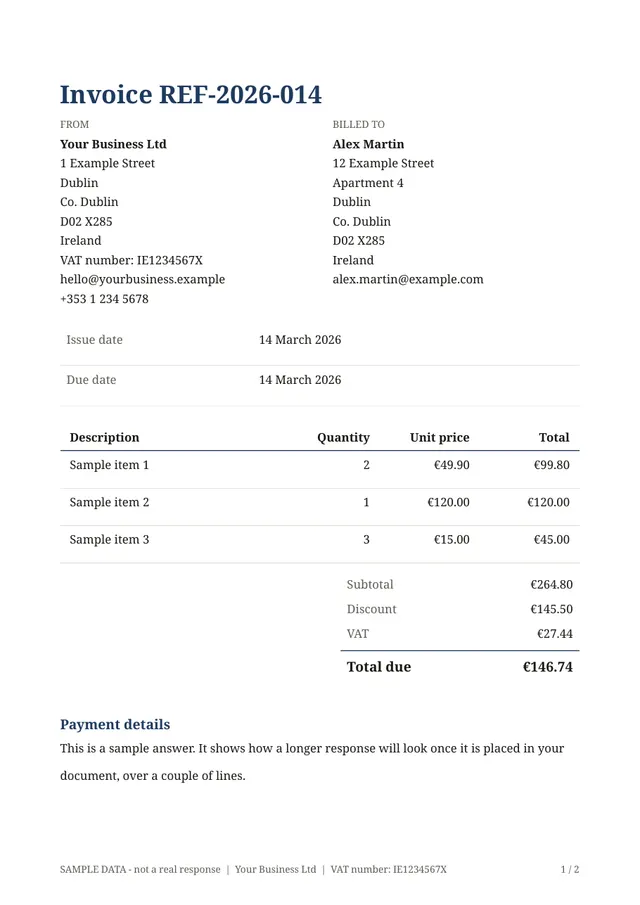
The template for this
Invoice with totals
Ready to use: change the questions, add your logo and share the link.
Questions
- Do my clients see my IBAN or VAT number in the form?
- No. Your business details are only printed on the PDF documents your own forms produce. They are not shown on the form itself.
- Where do I add my logo?
- The logo is not part of the business details. You add it in the document editor of each form, in the Style tab, with Upload logo.
Related templates
Send your first document today.
Pick a template, add your logo, share the link. Free during early access.