Design the PDF: logo, colours and where answers go
Updated 21 October 2026 · 4 min read
Click Document in the form builder. Build the page from blocks in the Content tab, insert answers with variables such as {{client_name}}, set the logo and colours in the Style tab, and check it in Preview.
Each form has a document template: the layout of the PDF your client downloads after answering. You build it once, from blocks, and every response fills it in. Open it with Document at the top of the form builder, or from the Document link next to a form on the Forms page.
The editor has three tabs: Content for what the page says, Style for how it looks, and Preview to check the result.
Starting from a ready-made layout
- In the Content tab, open Start from a ready-made layout (invoice, quote, expense claim).
- Choose the Document (Invoice, Quote or Expense claim) and the Look (Classic, Modern or Minimal).
- Click Use this layout. It replaces the current content, but keeps your logo and page size.
These layouts match the quote, invoice and expense claim templates. With your own questions, change the variables to match your keys.
Placing the answers
The page is a list of blocks. Click a block name next to Add to append one, then move it with the arrows.
- Heading and Text: your own wording, with answers inside.
- Answers table: questions and answers as a table, for Every question or Only some questions. Photos and signatures appear here too.
- From and to: your details and your client's, side by side.
- Lines and totals: the rows of a line items question, with the Totals shown under the table. The last total is printed in bold.
- Divider, Space and Page break for the layout.
To put an answer inside a sentence, click in the text, then click a chip in the Variables panel. It inserts a variable such as {{client_name}}, which the PDF replaces with the answer. {{date}} is the date the document is made, and the {{my_...}} variables print your business details, such as {{my_name}} or {{my_vat_line}}. A warning appears if a variable matches no question.
Setting the style
In the Style tab:
- Upload logo: a PNG or JPEG of 1 MB at most. It appears at the top of the first page. Choose its Logo size.
- Choose the Accent colour, used for titles and lines. It must stay readable on white paper: too light a colour is refused.
- Set the Font (Sans-serif or Serif), the Text size, the Page size (A4 or US Letter) and the look of the Answers table (Lines, Striped or Plain).
- Add a Header text and a Footer text if you like, tick Colour band behind the large title or Show page numbers.
Checking the result
The Preview tab fills the page with invented sample data. Quick preview is instant; Real PDF shows the actual file, and Download sample PDF saves it.
Good to know
- The document saves itself. Your client gets the new version once you publish the form again: see publish and share.
- Each block has a Show this only if… link to print it only in some cases. See conditions.
- The form's own colours and font, as your client sees them while answering, are set in the Design tab of the builder, not here.
- Fonts cover Latin alphabets only for now.
Want to see a finished layout first? The invoice with totals template page shows a sample of its PDF.
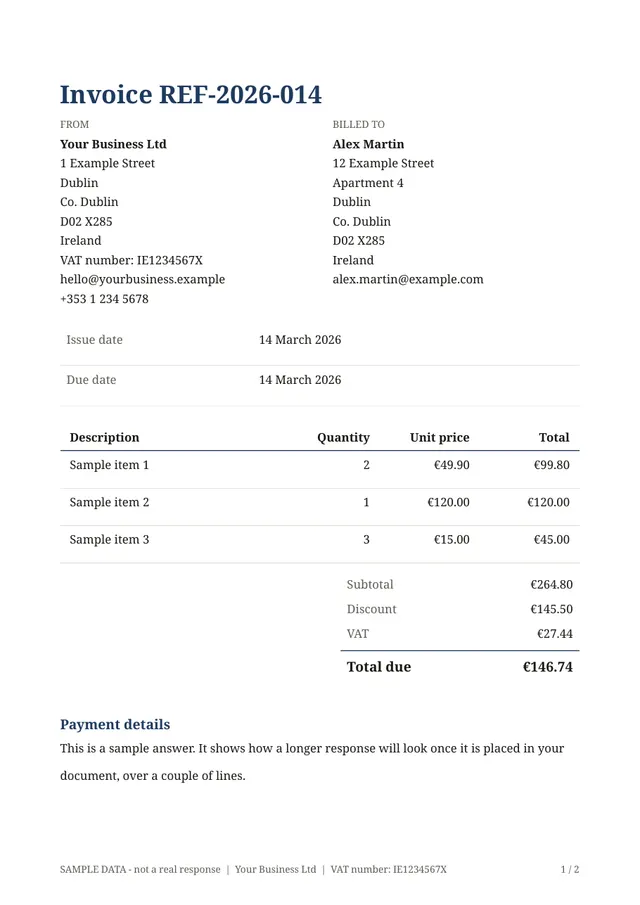
The template for this
Invoice with totals
Ready to use: change the questions, add your logo and share the link.
Related templates
- Quote with totalsLines of work with quantities and prices; subtotal, VAT and total are worked out for you.
- Inspection reportA checklist to record the result of an on-site inspection.
Send your first document today.
Pick a template, add your logo, share the link. Free during early access.